For Vu+, Zgemma, Octagon, Gigablue, Edision, Mutant, Qviart and other Linux receivers. Install XStreamity from your image's plugin feed, add your EyePTV login, and Live TV, movies, series and catch-up appear alongside your satellite channels. Eleven steps, about fifteen minutes.
XStreamity is not an M3U player. It is built around Xtream Codes login details entered as separate fields — server URL, port, username and password. If all we sent you was one long get.php link, message us: we can usually read the separate values out of the same account.
Vu+, Zgemma, Octagon, Gigablue, Edision, Mutant, Qviart and other Linux boxes.
OpenATV, OpenPLi, OpenViX, OpenHDF, OpenSPA, OpenBH and others that carry the plugin.
Server URL, port, username and password — as four separate values.
On a Dreambox? Same plugin, same steps — we have a separate Dreambox page covering the DreamOS package differences. The screenshots below are from OpenATV 7.6; other images look slightly different but the button names are the same. XStreamity is a player only — its developers state it ships with no channels and no playlists. EyePTV supplies those.

Press MENU on the receiver remote and select Plugin Browser.

Inside the Plugin Browser press Green for Install Plugins. That is what pulls the list down from your image's feed.

Select Extension Packages — some images call it just Extensions — and press OK.

Scroll down to XStreamity. The feed describes it as an IPTV Xtream Codes playlist player, which is how you know you have the right entry.
Press OK to select it.

Press Green to start the install and confirm Yes. When it finishes, restart the Enigma2 GUI or reboot the receiver.
Don't skip the restart. XStreamity frequently will not show up in the menu until Enigma2 reloads, and people reinstall it two or three times before working that out.

After the restart, press MENU and look for XStreamity. On some images it lives inside Plugins instead — check both before assuming the install failed.

On the XStreamity main menu choose Add Playlist and press OK.

Fill each field separately, exactly as we sent them: Name — type EyePTV. Protocol — http:// or https://. Server URL — the host on its own. Port, Username, Password.
Press Green to save.
get.php playlist link into it — XStreamity builds that itself from the separate fields. Watch for accidental spaces too; they are invisible on screen and break the login silently.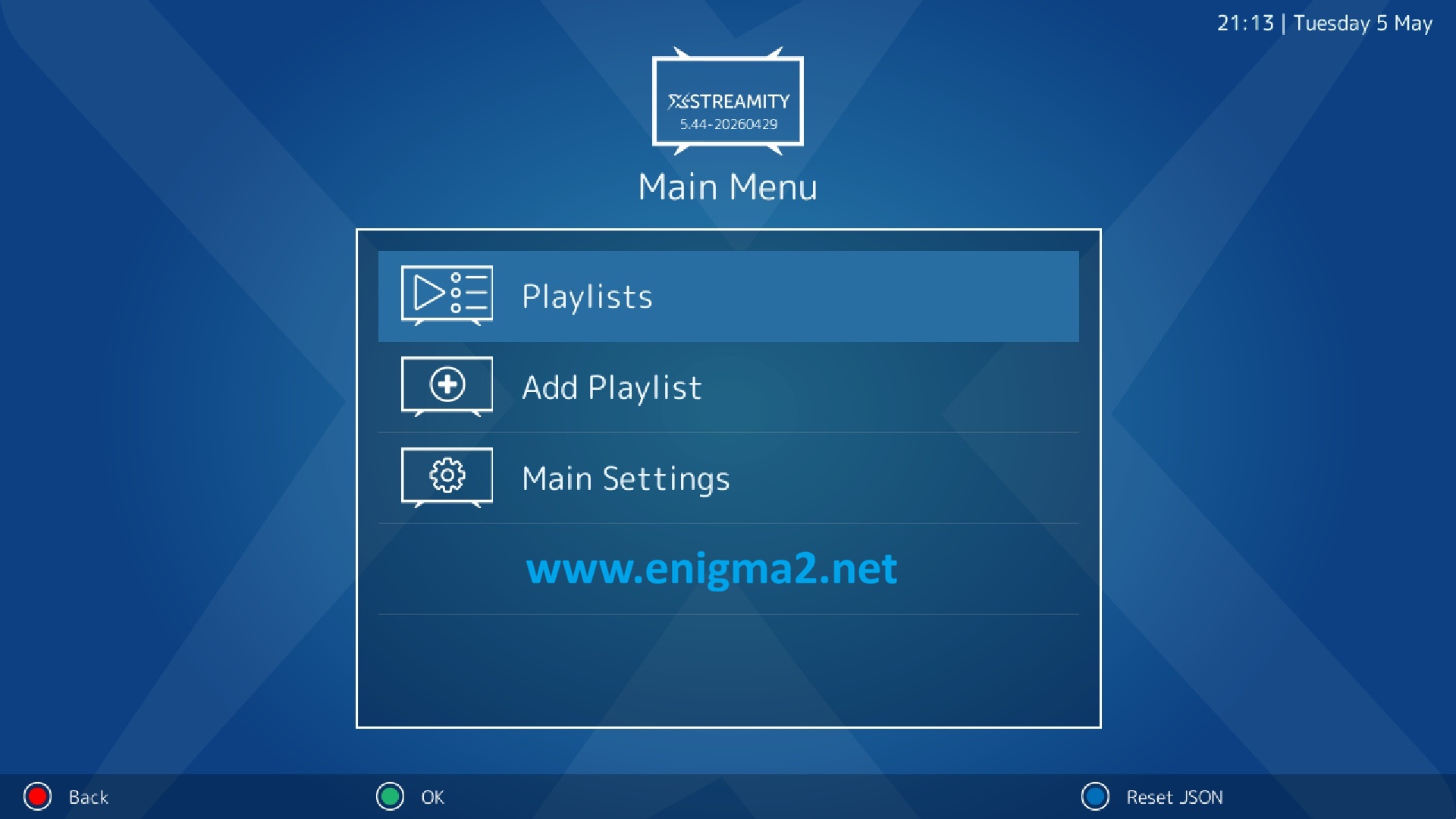
Once saved, XStreamity adds a Playlists entry to its main menu. Select it and press OK.
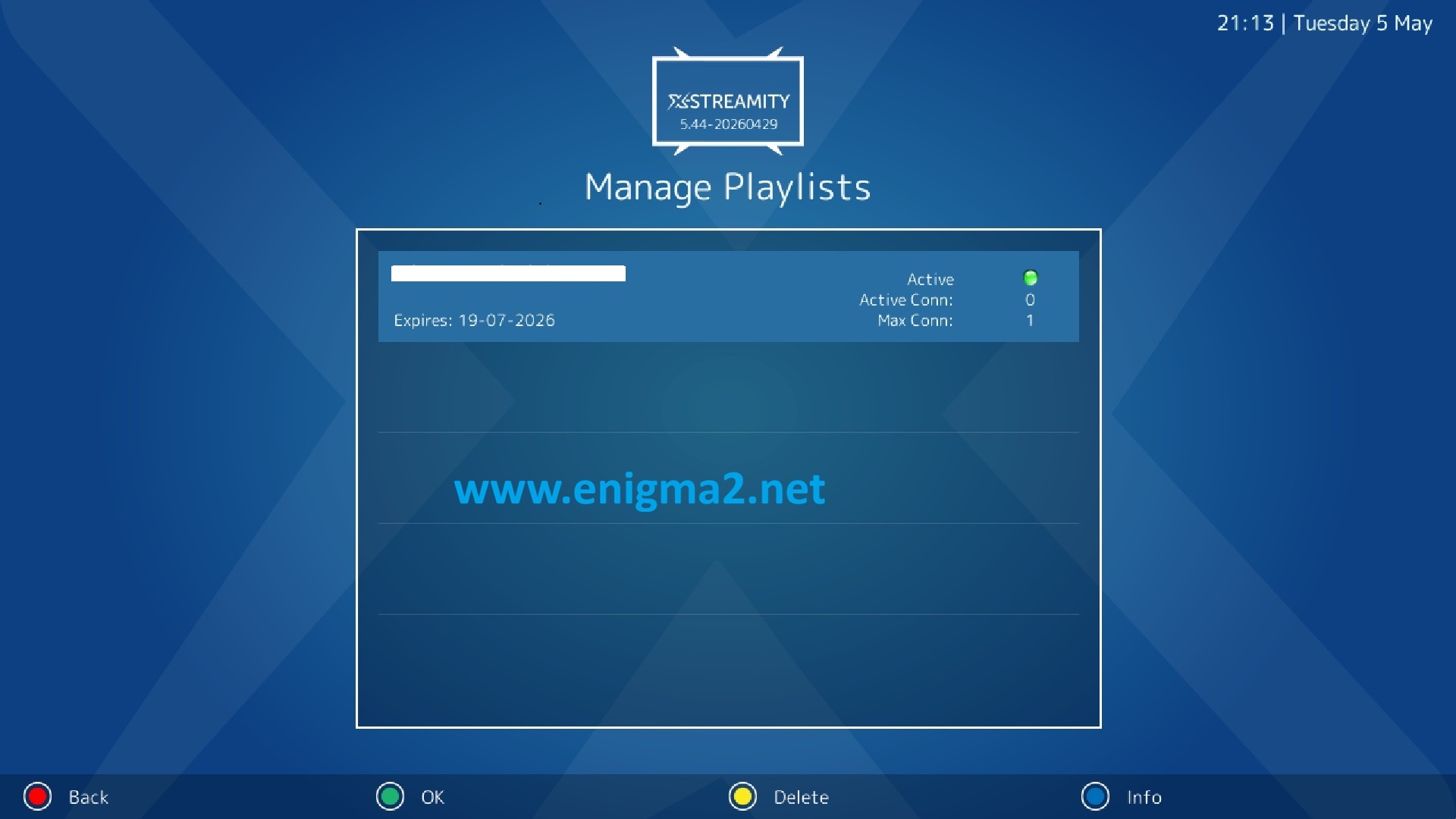
Your EyePTV account appears in Manage Playlists. Where our server supplies it, XStreamity shows the account status, expiry date and connection limit here.
Highlight EyePTV and press OK.
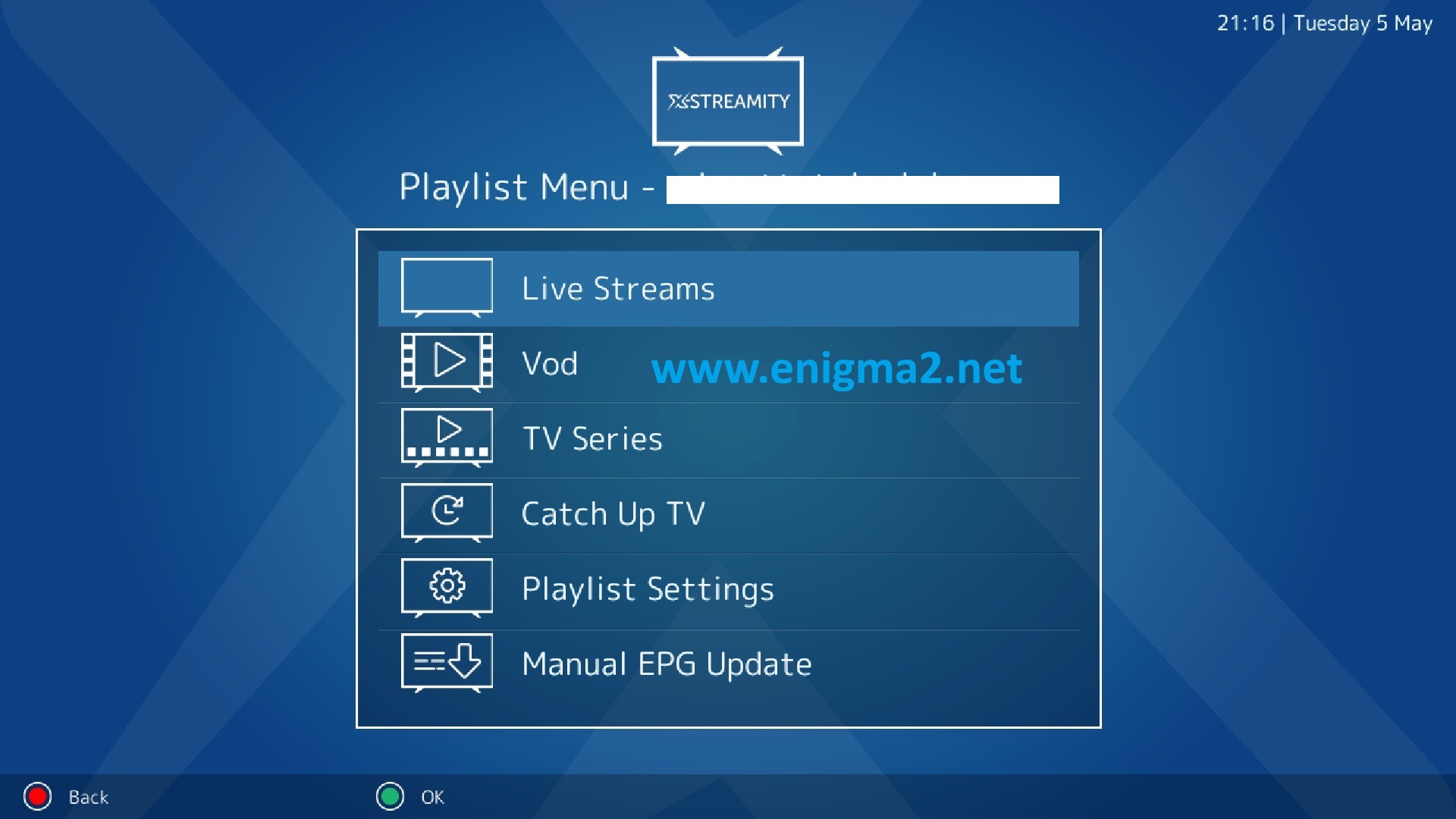
The playlist menu shows whatever your package includes — Live Streams, VOD / Movies, TV Series, Catch Up TV, plus Playlist Settings and Manual EPG Update.
Pick a section and browse with the remote. If the guide is empty, run Manual EPG Update and let it finish — it takes longer than most people wait.
Availability varies between images and versions. First update your image's package and plugin feeds, then check Extensions again — that alone fixes it most of the time.
If your image still doesn't carry it, advanced users can install a package from the maintained XStreamity project directly. Use the format and architecture that matches your receiver and image. Installing a package built for a different Enigma2 image is the usual way people end up with a broken plugin menu, so check first rather than after.
On OpenPLi? The flow is the same, just worded differently: Menu → Plugins → Green → Extensions → XStreamity → install → restart GUI → Add Playlist.
Six things that go wrong on Enigma2 receivers, and how to fix them.
Restart the Enigma2 GUI or reboot the receiver, then check under both Menu and Plugins — different images file it in different places. This is almost always all it needs.
Check Protocol, Server URL, Port, Username and Password one field at a time, and look for accidental spaces — they don't show on screen but they break the login. Then confirm with us that the subscription is active.
XStreamity works from Xtream Codes details rather than a playlist link. Message us and we'll pull the server, port, username and password from the same account.
Try Ethernet instead of Wi-Fi first, then reboot. If it persists, change the stream type or playback engine in XStreamity's settings — some images run better with ServiceApp.
Run Manual EPG Update from the playlist menu and let it finish. A full guide download takes several minutes. Restart the GUI afterwards if you changed EPG settings.
Catch-up has to come from the source for that specific channel — the plugin can't create it. Tell us which channel and we'll check whether it carries catch-up on your package.
Message us with your receiver (Vu+ Duo, Zgemma H9, Octagon SF8008 and so on) and the image you're running. That tells us most of what we need to know.
Get help on WhatsAppEvery screenshot on this page comes from enigma2.net's OpenATV 7.6 tutorial; each credits its source underneath. None are AI-generated. Other Enigma2 images look slightly different but use the same button names. Plugin release visible at time of writing: v5.58 (July 2026) — check the project page for anything newer. Verified August 2026.