There is no IPTV player app in the PlayStation Store, so nothing gets installed on the console itself. Your EyePTV playlist runs through xTeVe on a computer, into Plex, and out to the Plex app on the PS5. It works — on PS4 too — but read the box below before you start.
This is the hardest setup on our site, and we'd rather you knew that now. Three things it needs that no other device does: a computer or NAS left running whenever you want to watch, xTeVe configured on it, and a paid Plex Pass — Plex charges for Live TV, and that fee has nothing to do with your EyePTV subscription. If you don't already run Plex, a $30 Fire TV Stick plugged into the same TV will have you watching in fifteen minutes with none of this. We'd honestly rather sell you a subscription that works on day one than one you spend an evening fighting.
Plex must be available in your region's PlayStation Store — it isn't everywhere.
Running Plex Media Server and xTeVe, and left powered on while you watch.
Plex's Live TV feature is paid. It's a Plex charge, not ours.
How the pieces fit: EyePTV M3U → xTeVe → Plex Media Server → Plex app on the console. Nothing about EyePTV is ever typed into the PlayStation itself. That's why this takes four parts instead of one, and why the console is the last thing you touch, not the first.
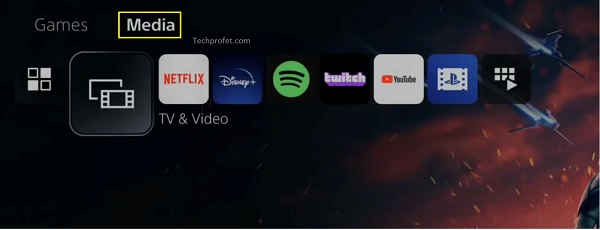
PS5: from the home screen go to Media → All Apps, find Plex and select Download.
PS4: open TV & Video, or Library → Applications, find Plex and download it.
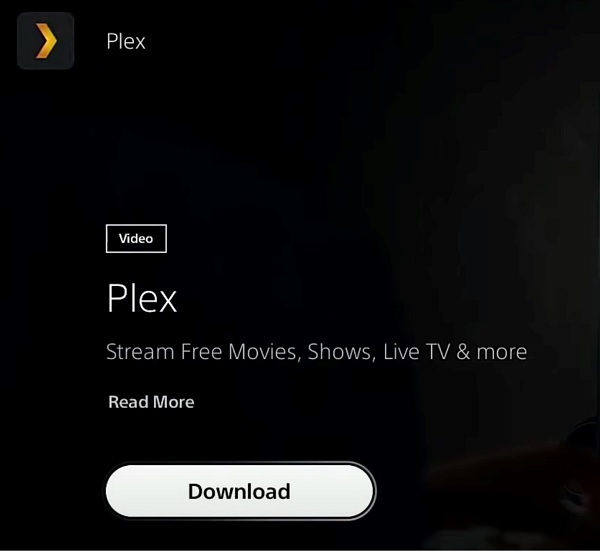
Launch Plex once the download finishes.
Nothing about EyePTV gets typed in here. The Plex app on the console is only a viewer — the playlist is set up on your computer and then appears in this app.

Choose Sign In. Plex shows a short code on the TV.
On your phone or computer, sign in to the same Plex account, open plex.tv/link and enter that code.
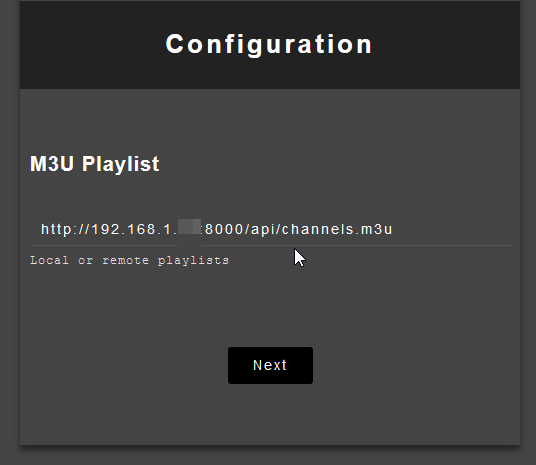
Install and run xTeVe on the same network as Plex Media Server. Its web interface normally opens at localhost:34400/web/.
Add the full EyePTV M3U playlist URL under M3U Playlist. If we sent you an XMLTV / EPG link, add that as the guide source as well.
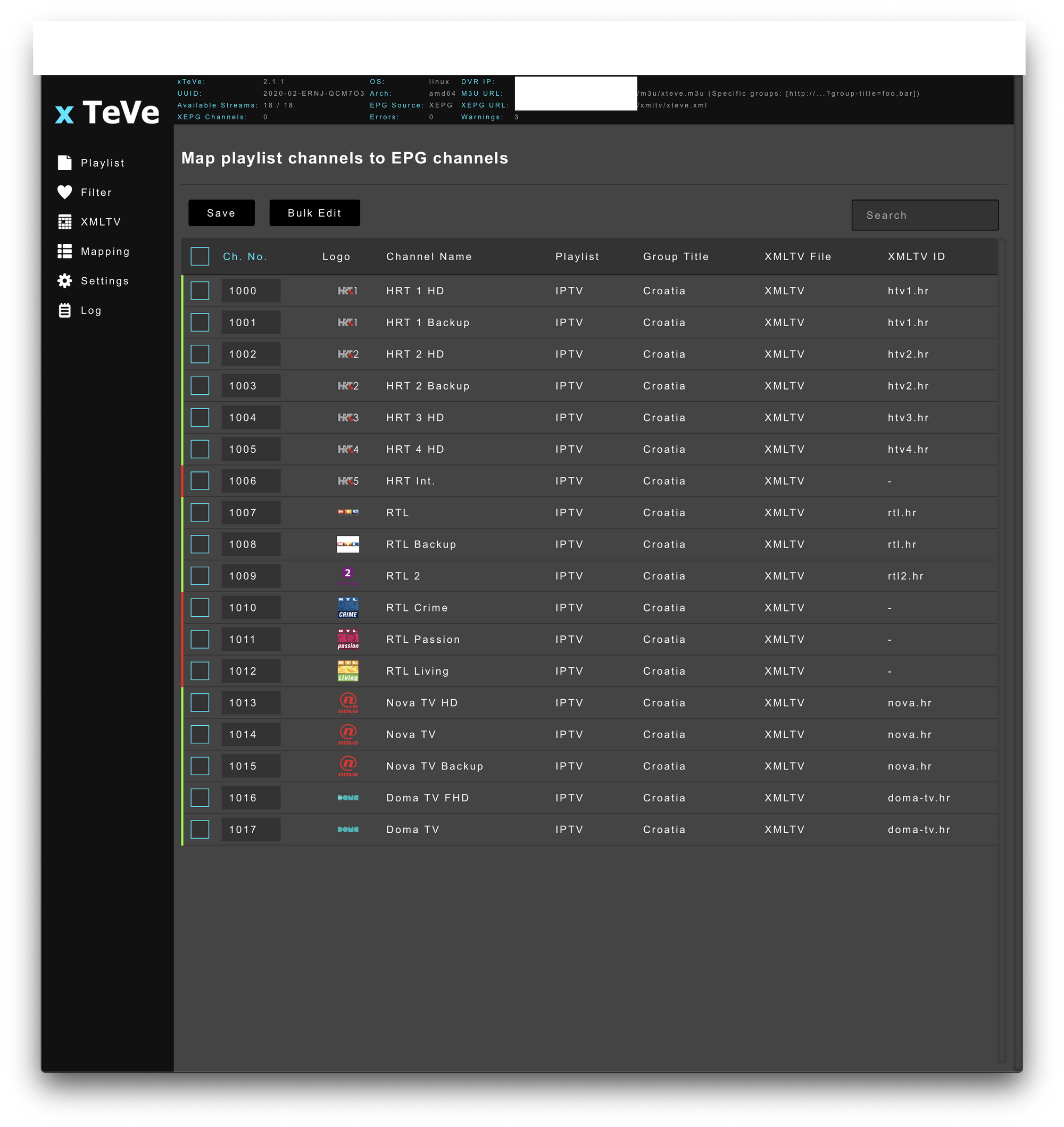
Open the Mapping section. Enable the channels you actually watch and match them to the right XMLTV entries, then save.
Don't enable everything. Plex builds a guide for every channel you pass through, and a full EyePTV playlist will make the guide slow and unwieldy. Fifty channels you watch beats twenty thousand you don't.
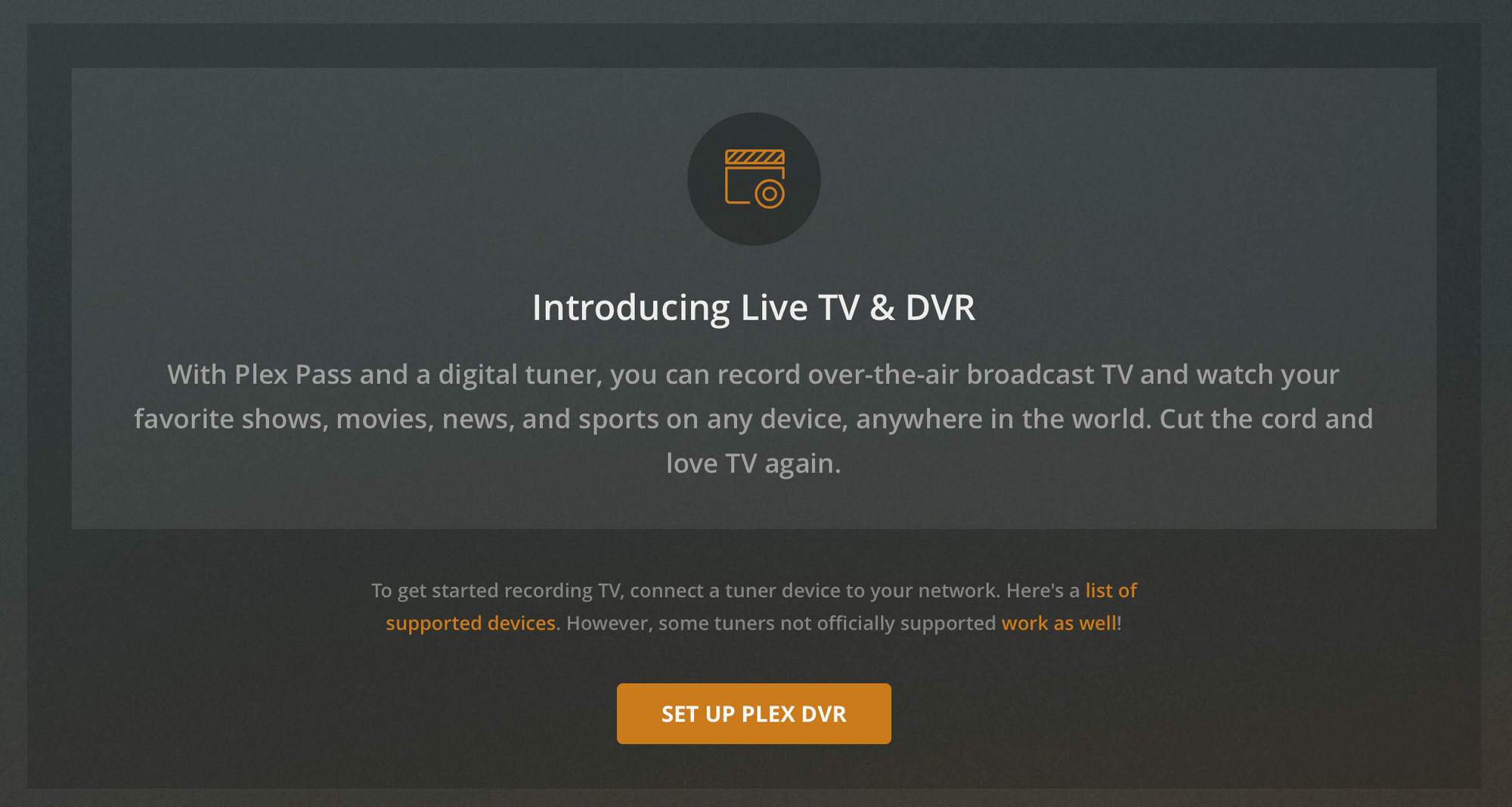
In the Plex Web App on the same computer, go to Settings → Live TV & DVR and choose Set Up Plex DVR.
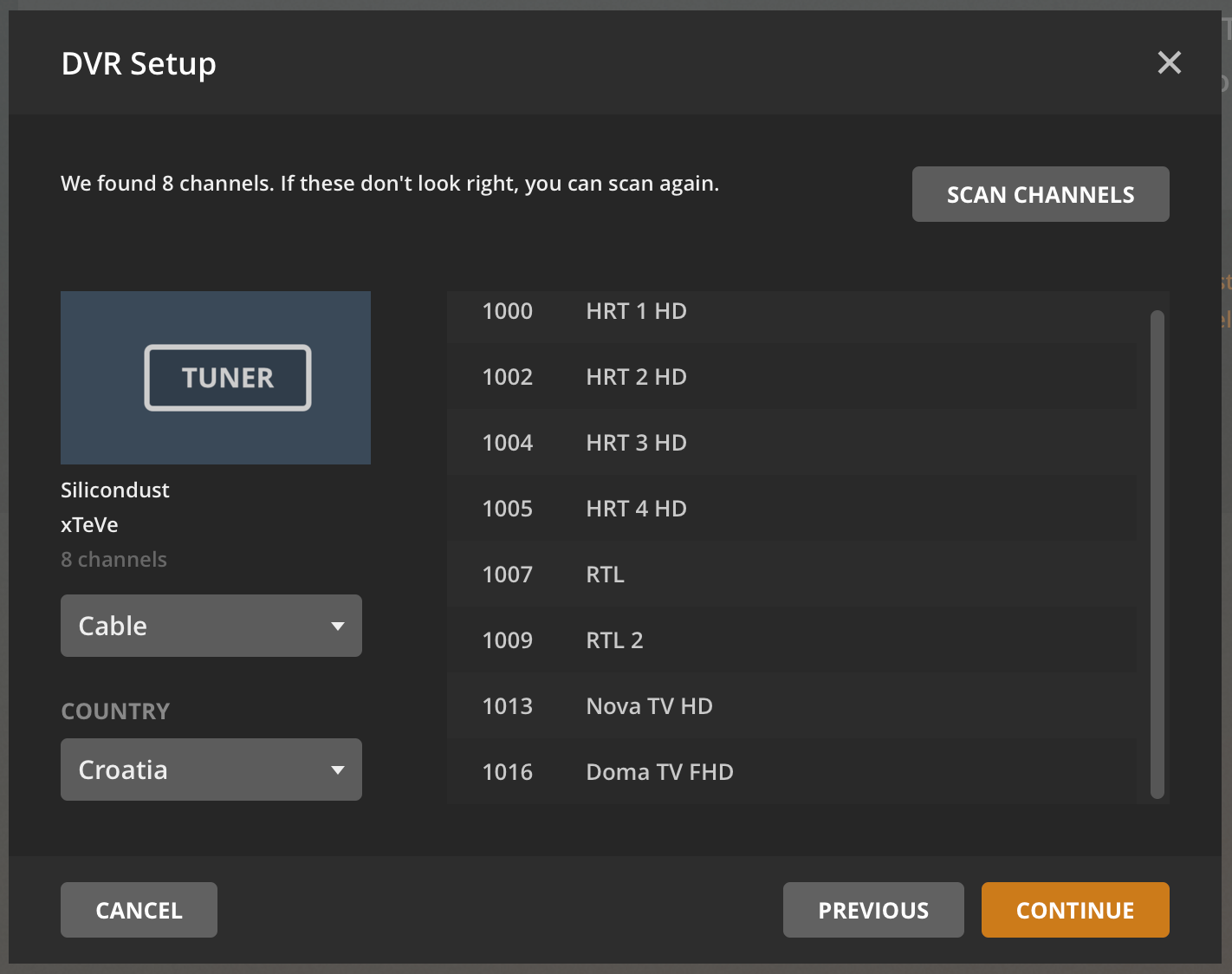
Plex often finds xTeVe on its own. If it doesn't, choose the option to enter a tuner address manually and use SERVER-IP:34400 — the IP of the machine running xTeVe.
Plex should list the channels you mapped. Continue when the list looks right.
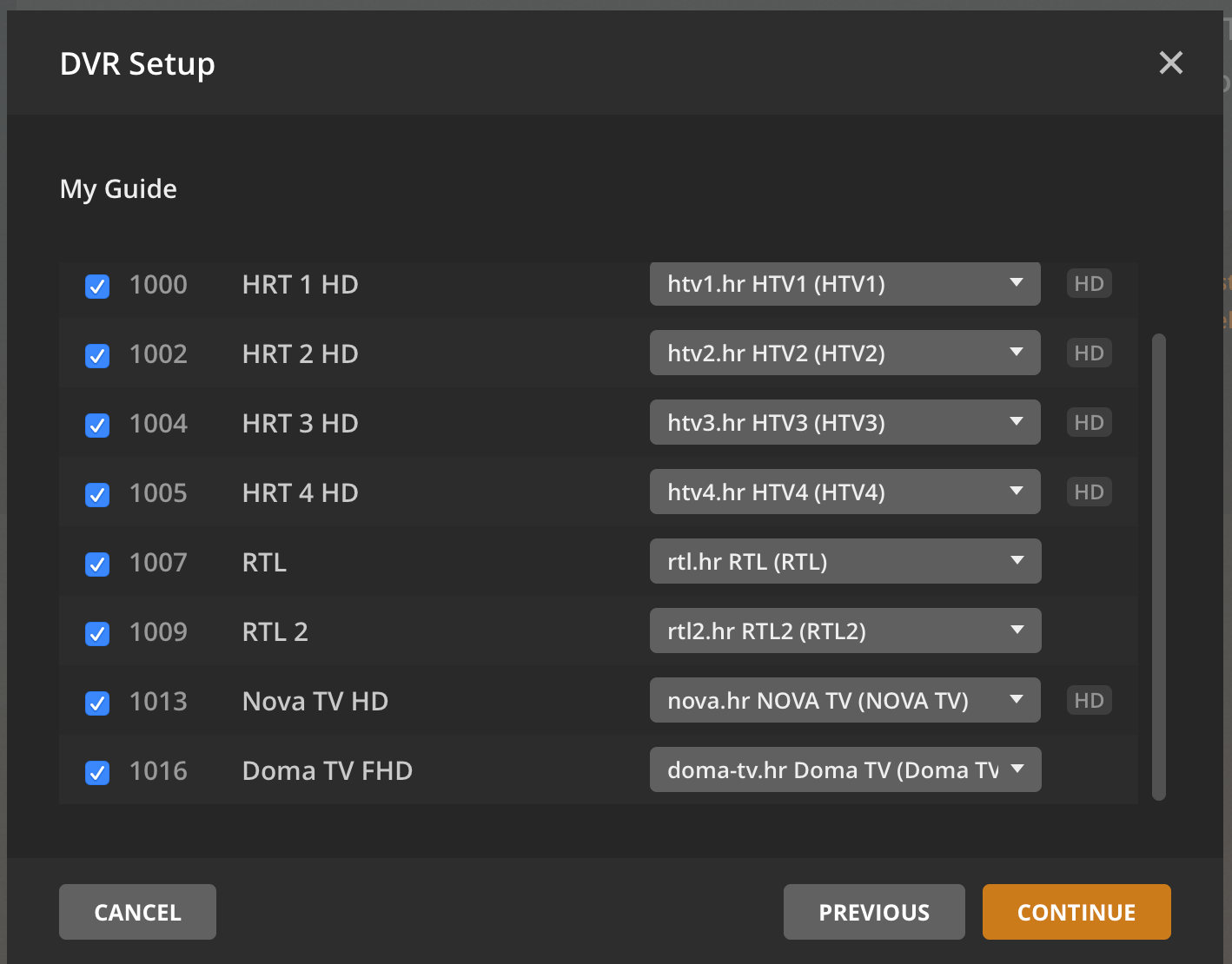
Plex asks you to confirm the lineup and match channels to guide data. Work through it, finish the wizard, then leave it alone for a while — building the guide takes time on the first run.
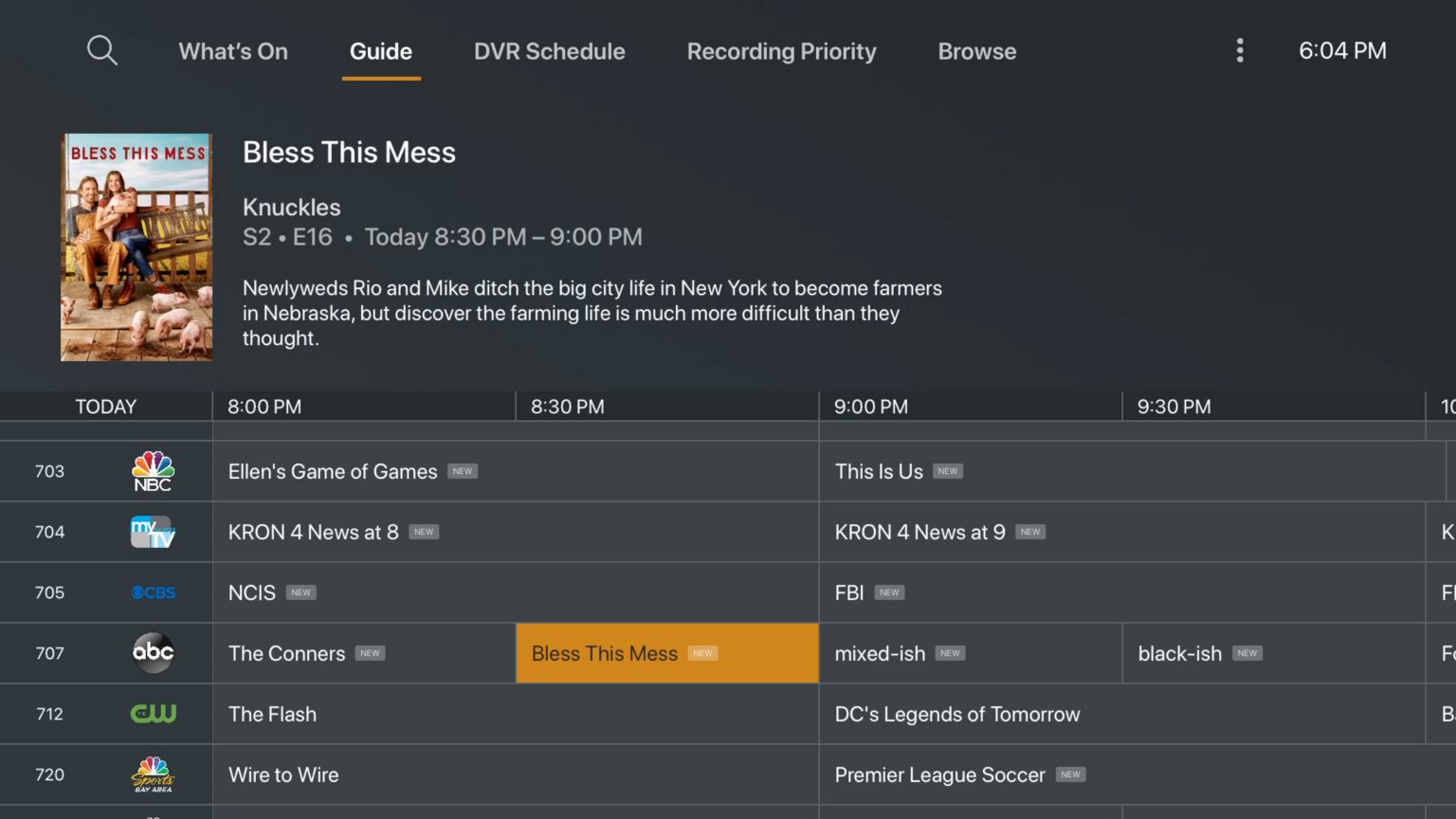
Back on the console, open Plex, open the sidebar and select Live TV & DVR from your server.
Your mapped EyePTV channels appear in the guide. Pick one and choose Watch. The computer running Plex and xTeVe has to stay on whenever you want to watch.
Six things that go wrong on this setup, and how to fix them.
Plex's console app isn't published in every regional store, and there's no workaround for that. If it's missing on your account, this route is closed — message us and we'll suggest a device that works on the same TV.
Check both are running on the same network, that xTeVe is actually started, and that port 34400 isn't blocked by your firewall. Then enter the tuner address manually as SERVER-IP:34400.
Test the same channel outside Plex first — that tells you whether it's the stream or the setup. Some formats need transcoding, which is what xTeVe's FFmpeg buffer is for. It needs a reasonably capable machine.
Check xTeVe's Filter and Mapping pages. Only channels you explicitly enabled get passed to Plex, so a missing channel is usually one that was never mapped.
That's expected. The computer running Plex and xTeVe has to stay on. If leaving a machine running isn't practical, this setup isn't the right one for you long term.
Yes, and we won't pretend otherwise: any Fire TV Stick, Android box, Apple TV or Google TV device takes your EyePTV details directly, with no computer in the middle. Same TV, same subscription, fifteen minutes.
Tell us what you've got — console, computer, whether you already run Plex — and we'll tell you honestly whether this is worth your evening or whether a cheap stick is the better call.
Ask us firstThe screenshots on this page come from public pages showing real Plex, xTeVe and PlayStation interfaces; each credits its source underneath. None are AI-generated. Plex app availability varies by PlayStation Store region, and Plex Pass pricing and Live TV terms are set by Plex, not by us. Checked August 2026.