The IPTV app we recommend on Google TV is TiviMate. Install it from the Google TV app store, add the EyePTV playlist we send you, and your channels load straight into the player. Eight steps, about five minutes.
Your TV or streamer has to be set up as Google TV, not Basic TV mode. Basic mode cannot install apps at all.
Sign in to your Google account on the device before you try to install anything.
Either the M3U link we sent you, or a server URL with a username and password.
Check this before anything else. If your device was set up in Basic TV mode, Google blocks app installation entirely — no app store, no TiviMate, nothing. Go to Settings → System → About and complete the full Google TV setup first. This is by far the most common reason a Google TV install fails.
TiviMate is the player; EyePTV is the service that supplies your channels. The app has none of its own. TiviMate Premium unlocks features inside the app — it is not a subscription to any channels and it is not part of your EyePTV plan.

From the Google TV home screen go to the Apps tab and select Search for apps and games. You can also press the Assistant button on the remote and say the app name.
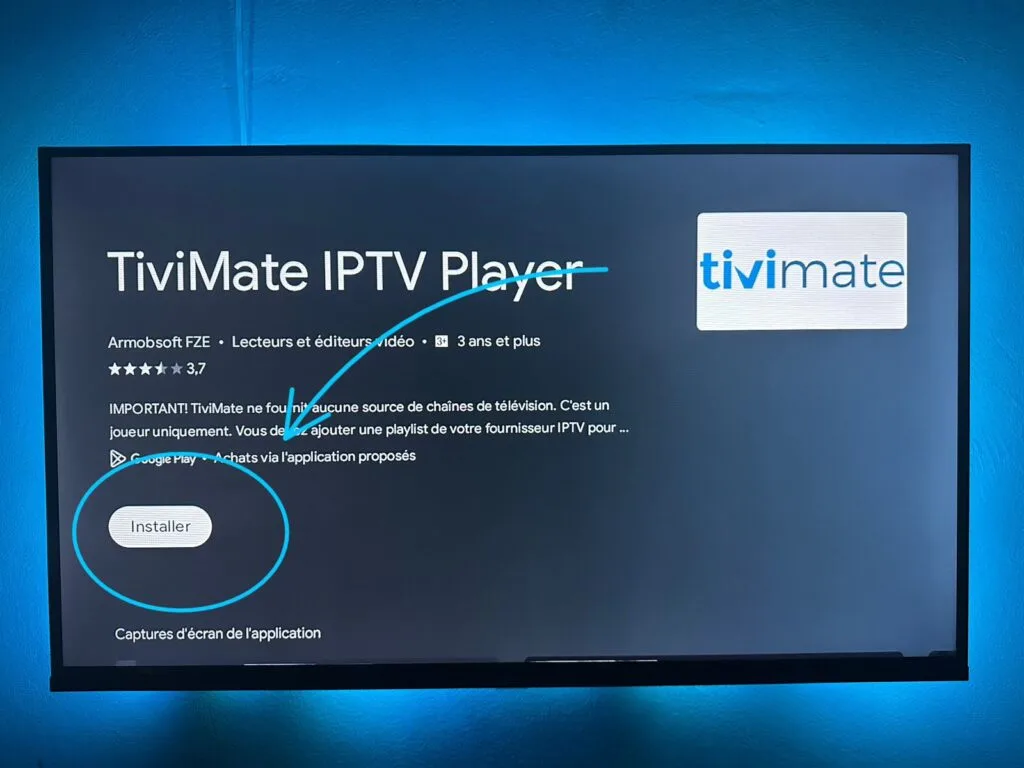
Search TiviMate IPTV Player, open the result and select Install.
When the install finishes select Open. From then on you will find TiviMate in the Your apps row on the Google TV home screen.

TiviMate opens by telling you it supplies no TV sources of its own. Select Add playlist to connect it to your EyePTV service.
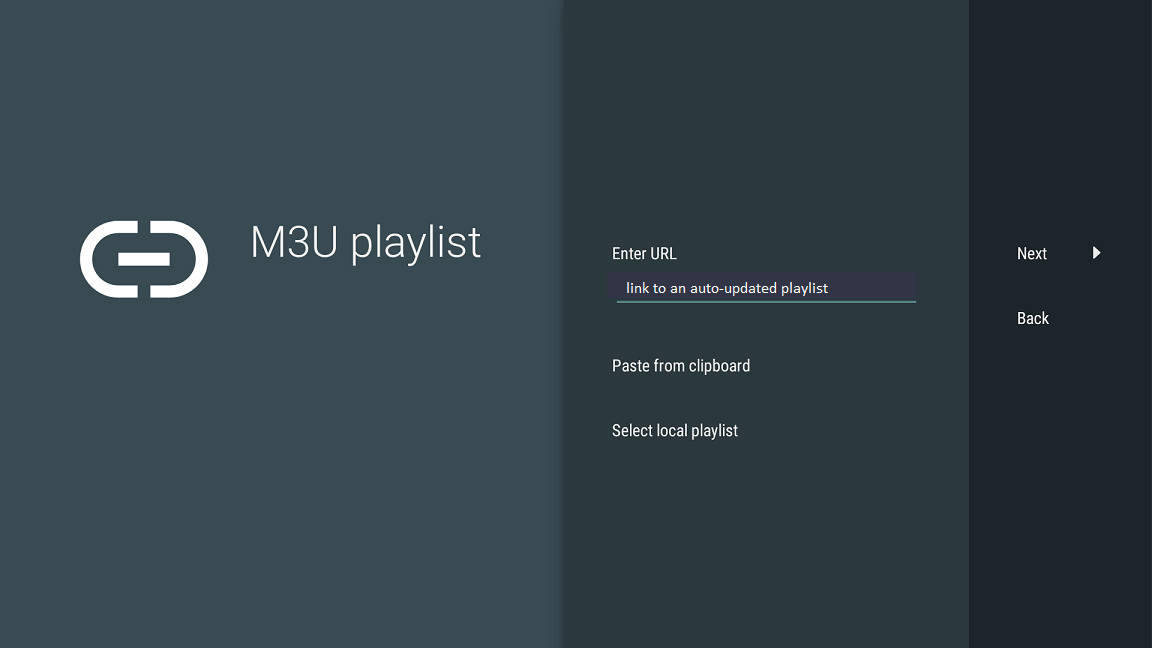
Pick M3U playlist if we sent you one long link starting with http:// or https://.
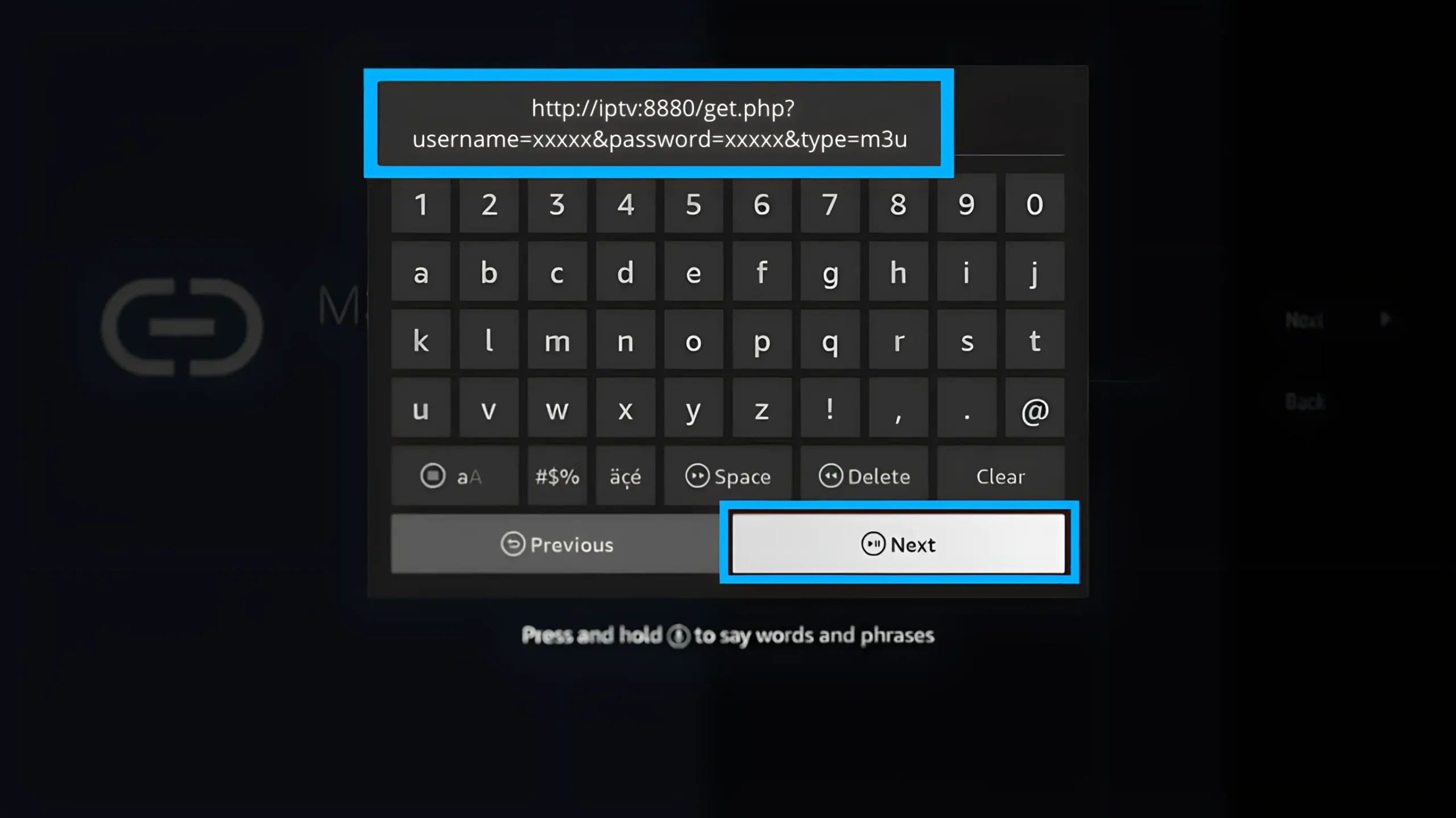
Type the full M3U / M3U8 URL we sent you on WhatsApp, then select Next.
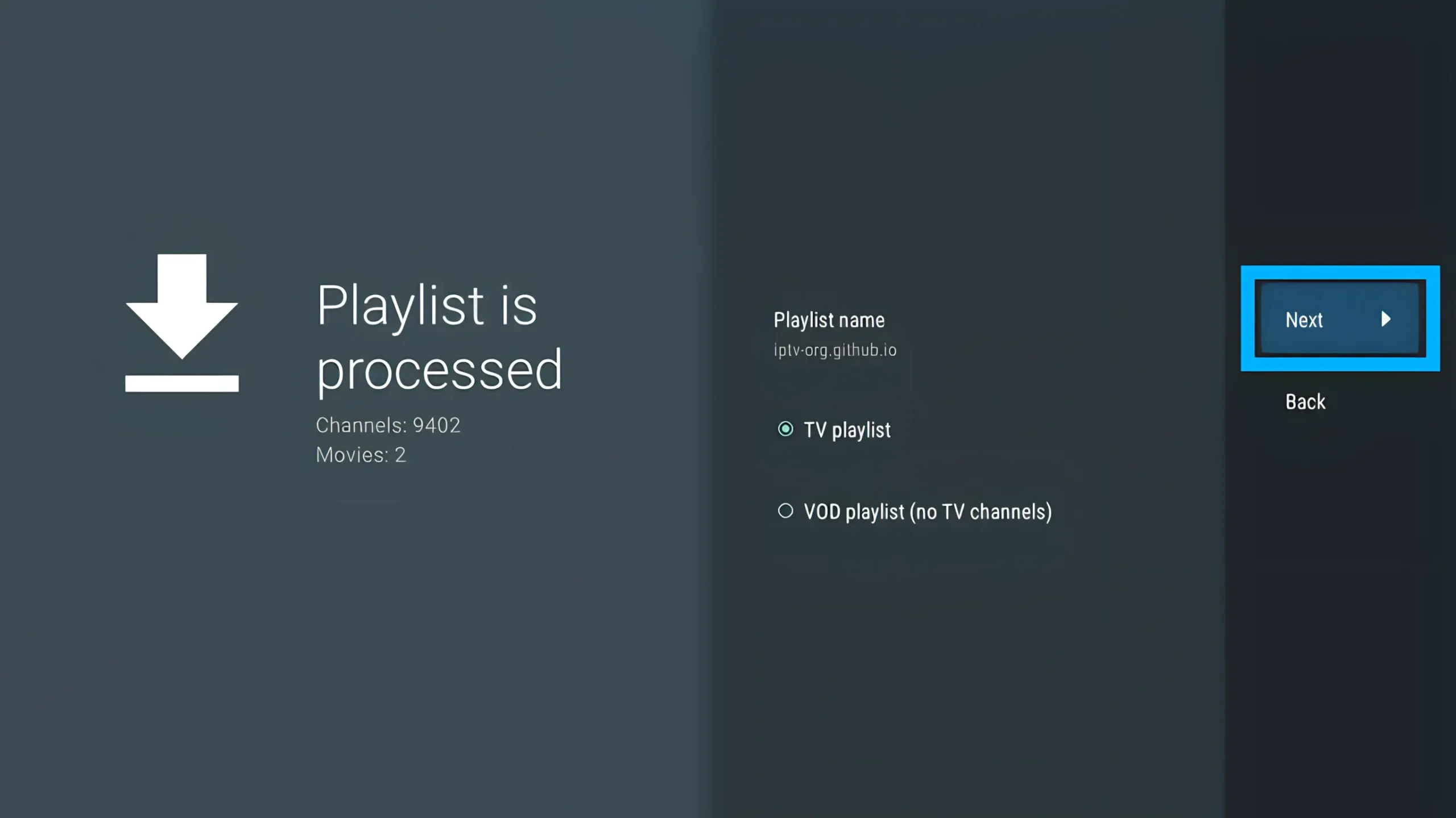
TiviMate connects and reads your playlist. When it confirms Playlist is processed, name it EyePTV if asked, then select Next or Done.

Your channel groups, favourites and TV guide load into the player. That's you set up.

Some EyePTV setups come as three separate values rather than one long link: a server URL, a username and a password. Use TiviMate's Xtream Codes option instead of M3U — everything else on this page is the same.
Xtream Codes usually pulls the TV guide in on its own, so it is the easier route if you have the choice.
The four things that go wrong most often on Google TV, and how to fix them.
Your device is almost certainly in Basic TV mode. Google disables app installation completely in that mode — it isn't a fault with TiviMate or with us. Run through the full Google TV setup with your Google account, then try again.
Search the exact name TiviMate IPTV Player. Availability varies by device and country. Don't install a lookalike with a similar icon — check the developer is Armobsoft FZE before you tap Install.
Paste the whole link again and check for a stray space at either end. Confirm your subscription is active. And if we gave you a server URL with a username and password, use Xtream Codes rather than M3U.
If we sent you a separate EPG / XMLTV link, add it under TiviMate's EPG settings. On Xtream Codes the guide usually arrives by itself — give it a few minutes on the first load.
Send us a photo of your TV screen on WhatsApp. Tell us whether you're using M3U or Xtream Codes and we'll take it from there.
Get help on WhatsAppThe screenshots on this page come from public pages and from TiviMate's own Google Play listing; each credits its source underneath. None are AI-generated. Layout varies by brand, country and software version. TiviMate listing checked August 2026 (developer Armobsoft FZE, updated 22 June 2026).