The IPTV app we recommend on LG TVs is IBO Player Pro. Install it from the LG Content Store on webOS, connect your EyePTV playlist with the Device Key, then reload the player. Ten steps, about ten minutes.
Your TV needs to be on Wi-Fi or Ethernet before you start.
Sign in to your LG account. Which apps you can see depends on the LG Services Country set on the TV.
Have the M3U / M3U8 link we sent you on WhatsApp open and ready to paste.
Two separate things. IBO Player Pro is the app that runs on your TV. EyePTV is the service that supplies your playlist. The player has no channels of its own — it needs the playlist we send you. IBO Player Pro is free to try for 7 days; any app licence after that is separate from your EyePTV subscription.
webOS looks different depending on your TV's year and software version, so follow the button names rather than the exact layout: Home → Apps / LG Content Store → Search → IBO Player Pro → Install → Launch.
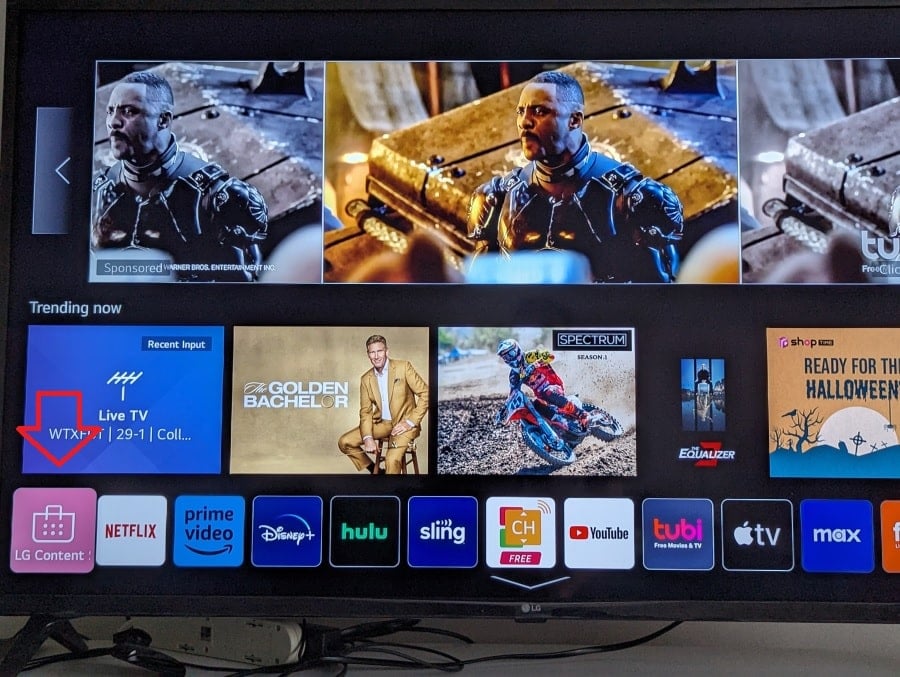
Press the Home button on your LG Magic Remote. On newer webOS versions select Apps; on older ones select LG Content Store.
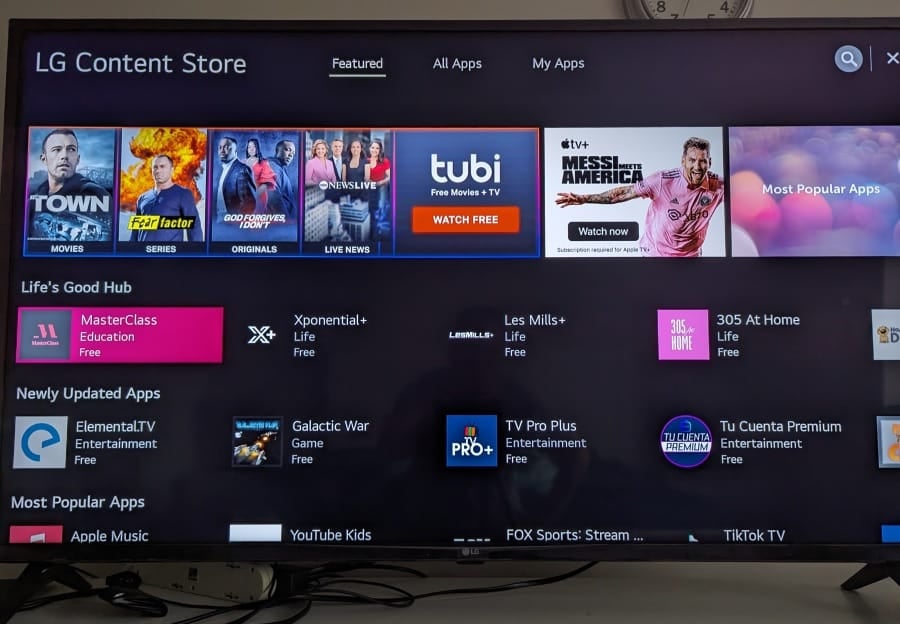
Inside Apps or the LG Content Store, move up to the magnifying-glass icon in the top-right corner of the screen.
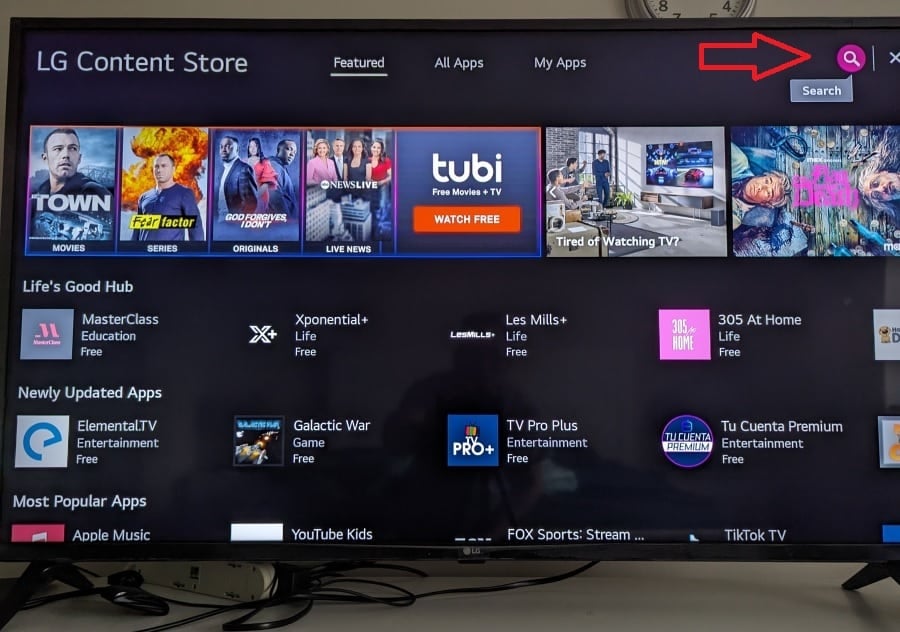
Click the search icon and the on-screen keyboard appears. This is LG's standard way of installing any app on webOS.
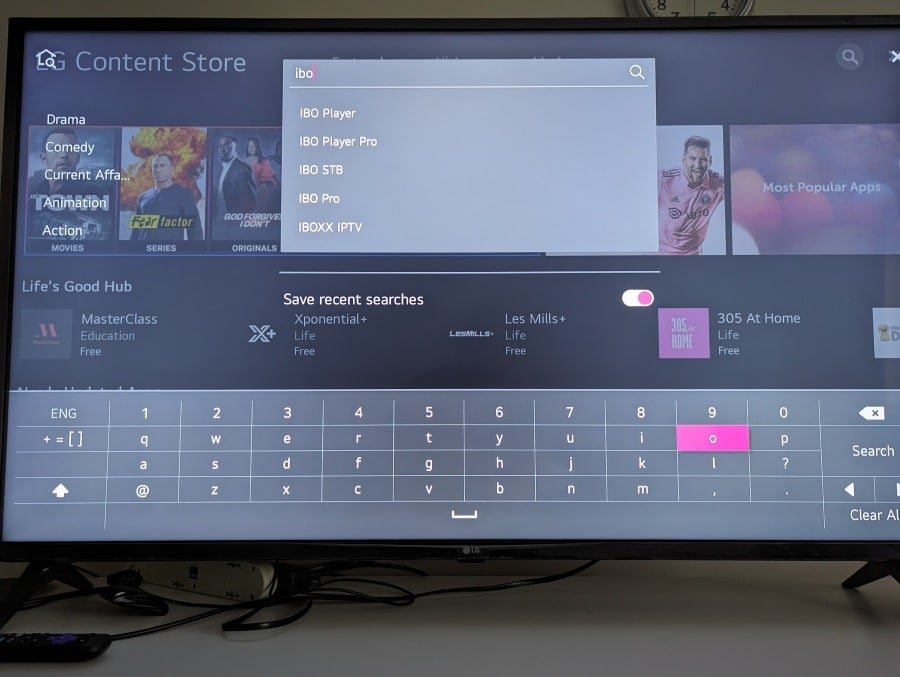
Enter IBO Player Pro. Typing the remote is slow, so on most LG TVs just typing ibo is enough to bring up the IBO apps.
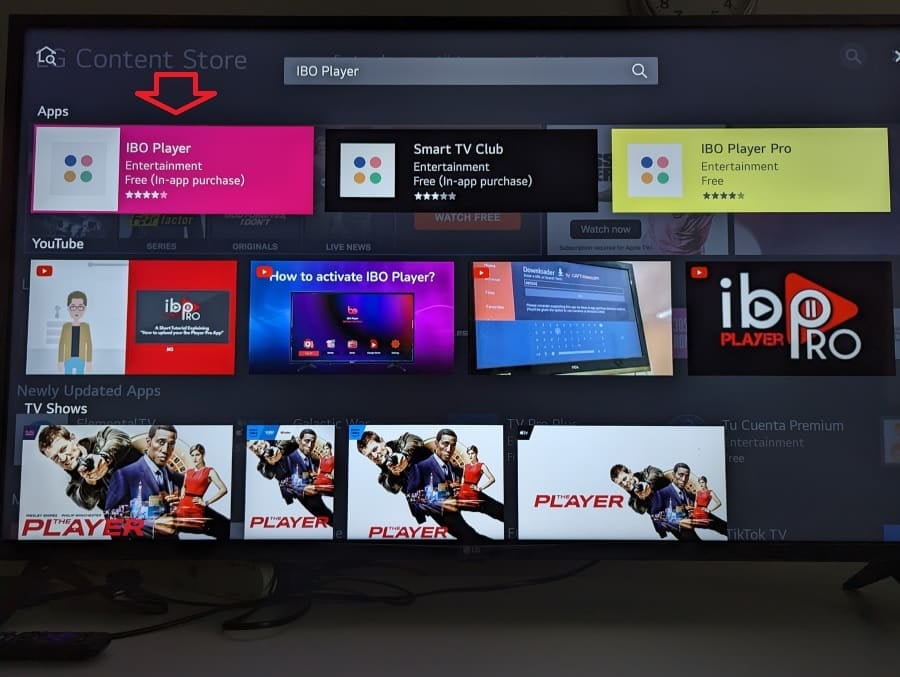
Move to the tile named IBO Player Pro and open its details page.

Select Install. When the download finishes, choose Launch to open the player for the first time.
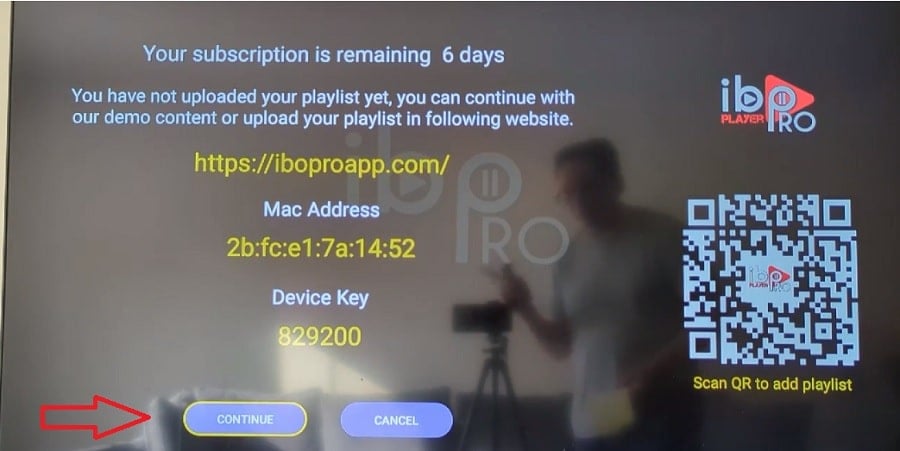
When the player opens it shows a MAC Address / Device ID and a Device Key. Write both down, or scan the QR code if the app shows one.
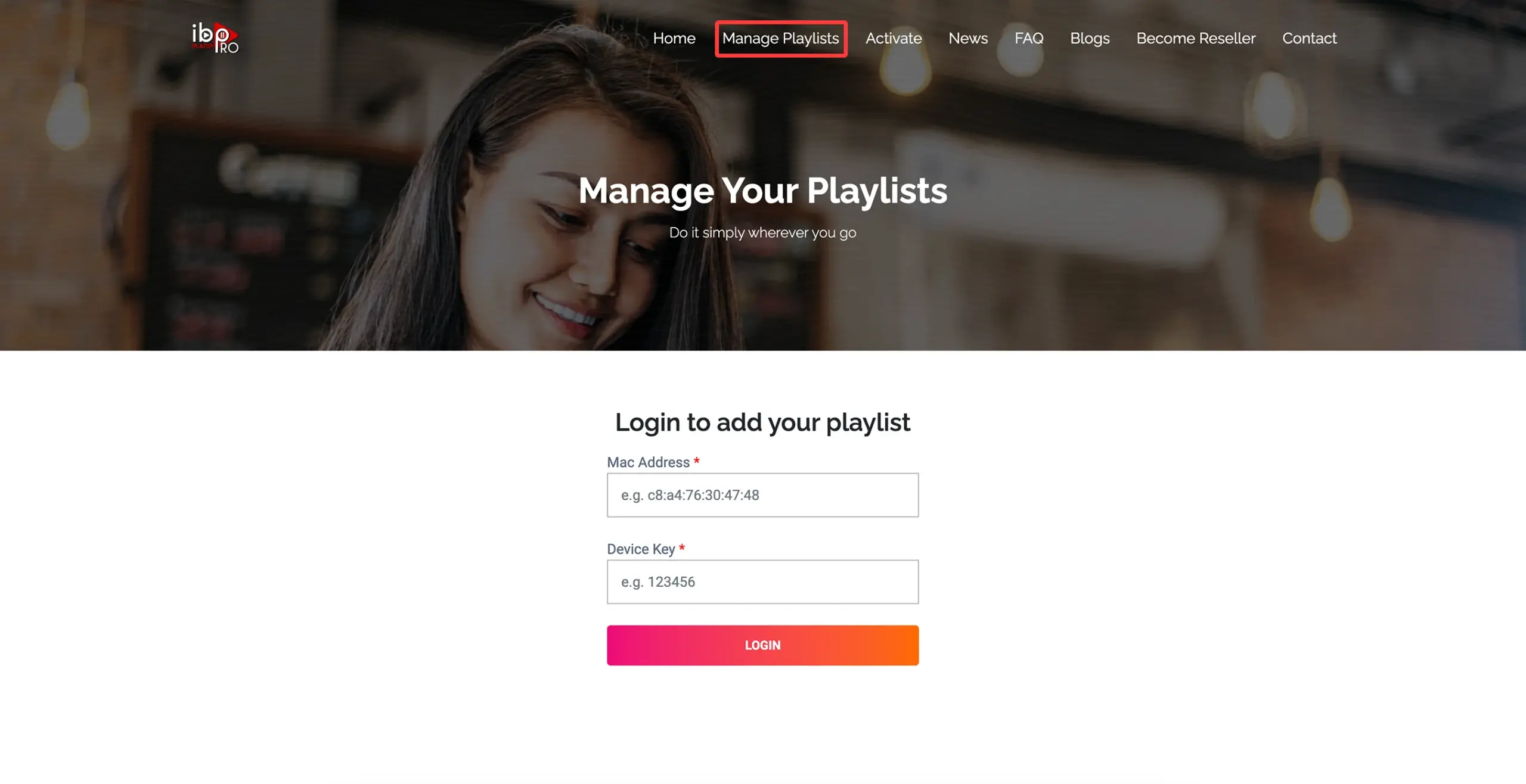
On a phone or computer, open the Manage Playlists website that your app displays on the TV screen, and log in with the same MAC Address and Device Key.
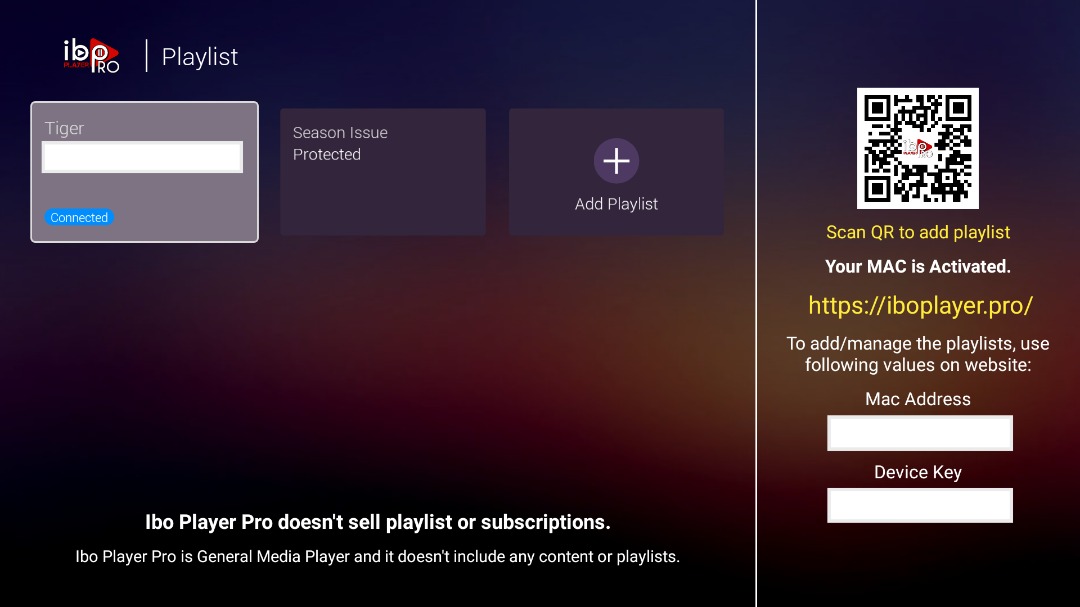
Once you are logged in, select Add Playlist. Give it a simple name such as EyePTV, then paste the M3U or M3U8 URL we sent you on WhatsApp and save it.
Go back to your LG TV. Close IBO Player Pro completely, then open it again. If the app offers Reload or Refresh, use it.
Your playlist loads and you will see sections such as Live TV, Movies and Series, along with the TV guide. That's you done.
The four things that go wrong most often on LG, and how to fix them.
App availability changes by region and TV model. Check the LG Services Country in your TV settings, make sure you're signed in to an LG account and that the TV software is up to date. If it still doesn't show, message us — we'll point you to a player that works on your model.
webOS keeps very little free space on older sets. Uninstall an app you don't use, restart the TV, then try the install again. If it keeps failing, a cheap external stick will run everything without touching the TV's storage.
Reopen the player on the TV and compare every character — the letter O and the number 0 are the usual culprits. Then check you're on the portal your app actually displays on screen; IBO-branded players don't all use the same one.
Close the player fully and reopen it, then try Reload or Refresh. If it's still empty, the M3U link was probably cut short when it was pasted. Send us a screenshot and we'll check it against your account.
Send us a photo of your TV screen on WhatsApp and we'll tell you exactly what to press next.
Get help on WhatsAppThe screenshots on this page come from public pages showing real LG and IBO interfaces; each credits its source underneath. None are AI-generated. Menus vary by LG model, year, region and app version. Checked August 2026.