Install MyIPTV Player from the Microsoft Store, paste in the EyePTV playlist link, add the guide URL if we sent one, and watch straight from the console. Works on Xbox One, One S, One X, Series S and Series X. Six steps, about five minutes.
Xbox One, One S, One X, Series S or Series X, signed in to the Store.
This player works from a playlist URL rather than a username and password.
If we sent you an XMLTV link, adding it gives you the TV guide.
MyIPTV Player is a third-party app from the Microsoft Store. It is a player only — it comes with no channels of its own and installs none. EyePTV supplies the playlist you load into it.
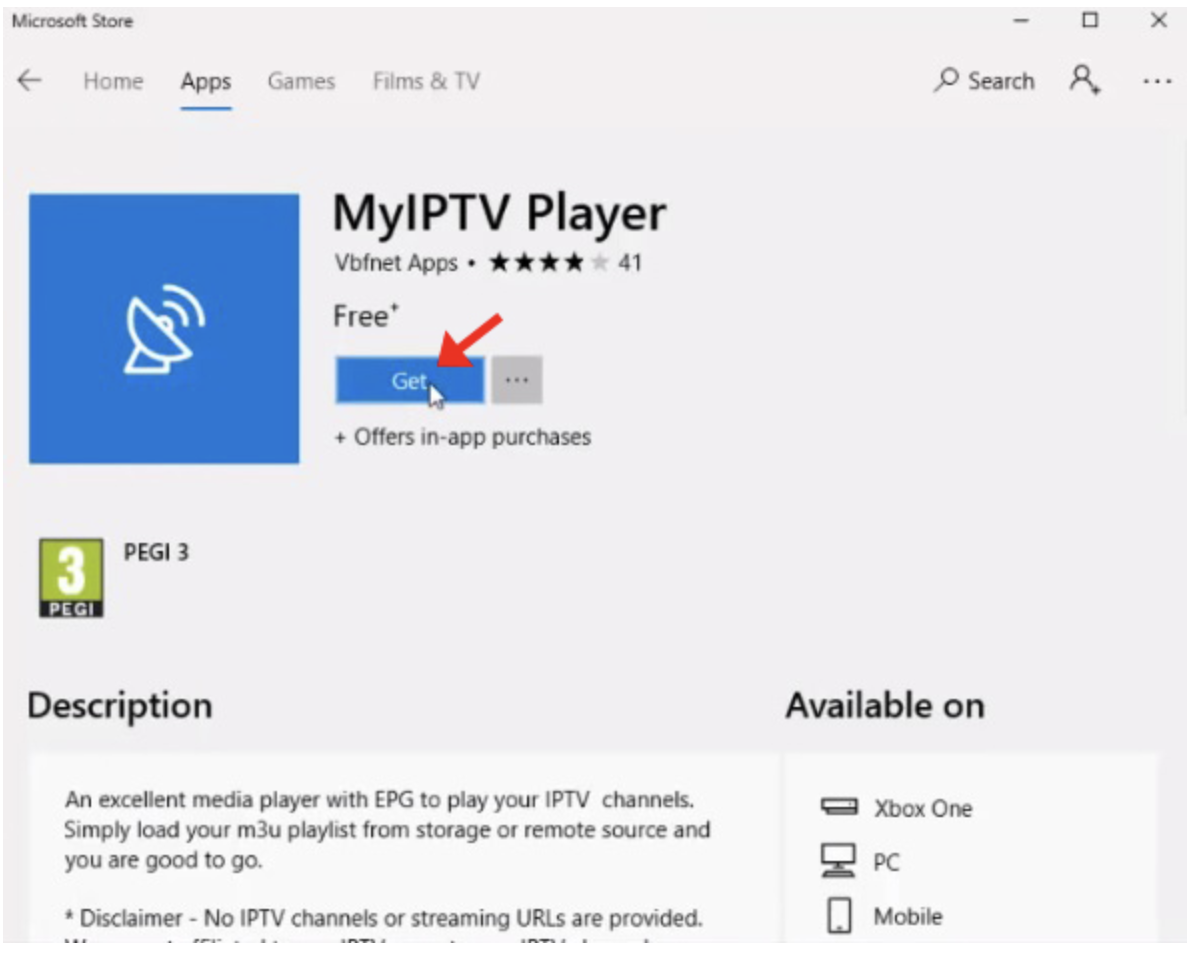
Turn on the Xbox, open the Microsoft Store and search MyIPTV Player. Select it, then choose Get or Install. It is free.
9PJJ2NMBF0TR. If several similar names come up, that ID is the one to match.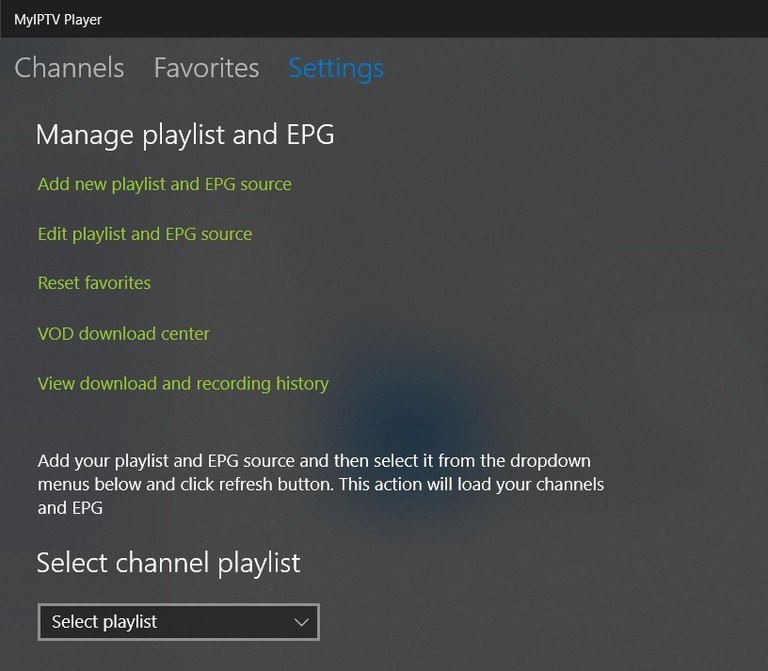
Launch the app and open the Settings tab, then select Add new playlist and EPG source.

Scroll to Remote channel list. Give it a name — type EyePTV — then paste the full M3U / M3U8 URL we sent you and select Add remote list.
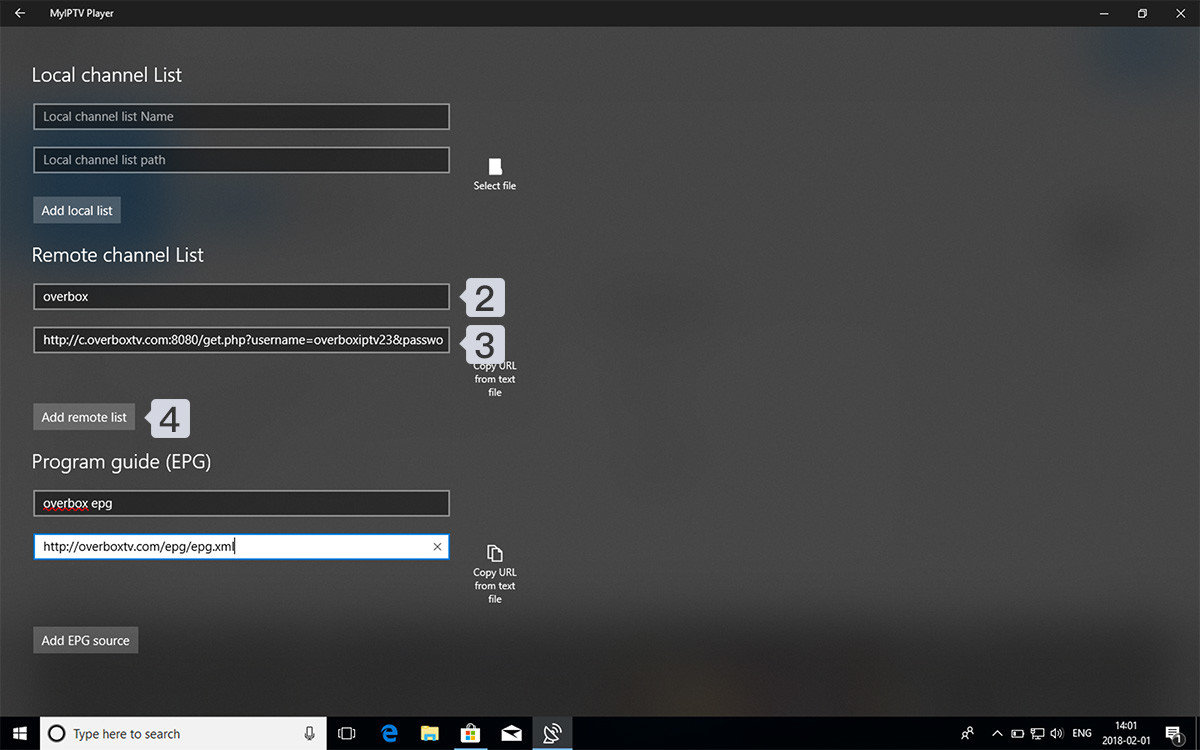
If we also sent you an EPG / XMLTV link, scroll to Program guide (EPG), name it EyePTV EPG, paste the link and select Add EPG source.
Skip this if you didn't get one — the channels still work, you just won't have a TV guide.
Go back to the main Settings page. Under Select channel playlist choose EyePTV from the dropdown and press Refresh. Let it finish downloading and parsing the list.
If you added a guide, pick EyePTV EPG under the EPG source dropdown and refresh that too.

Select the Channels tab. Your EyePTV list appears grouped into the categories from the playlist.
Pick a category, choose a channel and press A to play it.
Microsoft Store availability varies by region and by console listing, so the app is not guaranteed to show on every account. If yours doesn't offer it, don't install a similarly named app instead — there are several, and they are not the same thing.
The working fallback is Kodi, which is in the Xbox Store, with the PVR IPTV Simple Client add-on. Kodi loads the same M3U playlist and XMLTV guide. It is a longer setup with more menus, which is why MyIPTV Player stays the first choice wherever it's available.
Message us before you start on Kodi and we'll walk you through it — the add-on configuration is the fiddly part, not the install.
The five things that go wrong on Xbox, and how to fix them.
Re-enter the whole M3U link and check for a missing character or a space at either end. If we only gave you a server URL, username and password, message us for the matching M3U link — this player can't use those directly.
Adding a playlist doesn't switch it on. Go to Settings → Select channel playlist, choose EyePTV and press Refresh. Wait for it to finish before checking the Channels tab.
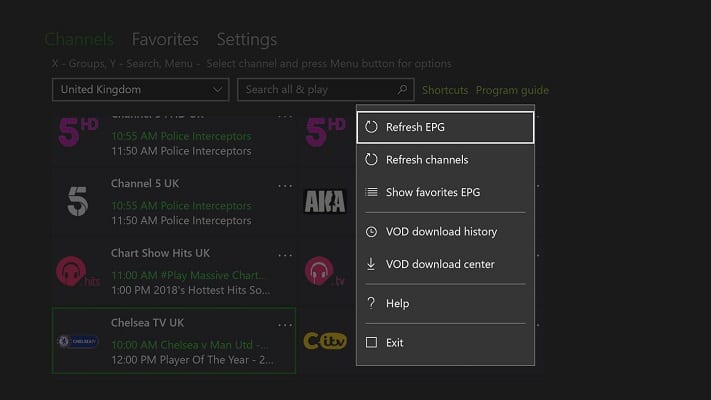
Check the EPG link was added under Program guide (EPG), then select that source in Settings and run Refresh EPG. A full guide download takes a few minutes.
Fully quit any suspended games before opening it — Xbox keeps them in memory and MyIPTV Player gets what's left. Series X|S handles large playlists noticeably better than an older Xbox One.
Older Xbox One hardware struggles with playlists of tens of thousands of channels. Message us — we can usually issue you a trimmed playlist with just the categories you actually watch.
No — Xbox runs one app at a time in the foreground. You'll be switching between the game and the player rather than watching alongside it.
Send us a photo of your screen on WhatsApp. Tell us which console you have and whether the playlist loaded but stayed empty.
Get help on WhatsAppThe screenshots on this page come from public pages and the app's own Store listing; each credits its source underneath. None are AI-generated. Store availability varies by region and console. Checked August 2026 — tell us if the app no longer appears on your console and we'll update this page.