MAG boxes work differently from every other device on this site: there is no app to install. We register your box by its MAC address, then you type our portal address into the MAG's own settings. Written for the MAG 254 and 255, and the same steps apply to the 250, 256, 322, 324, 420 and newer models — only the menu wording shifts slightly. Seven steps, about ten minutes, but one of them needs us first.
This is the one device you cannot set up on your own. A MAG box authenticates by its MAC address, so we have to register yours and issue you a portal URL before anything will load. Send us the MAC from step 1 and we'll reply with the address to type in.
Connected by Ethernet or Wi-Fi before you open any settings.
From the label underneath, or under Settings → System settings → About.
We issue this after your MAC is registered. It is not the same as an M3U link.
An M3U link will not work in the Portal URL field. Classic MAG boxes use a Stalker / Ministra portal address tied to your MAC, which is a different thing entirely from the M3U or Xtream login we send for app-based devices. Pasting an M3U link there gives a loading error every time. If that is all you have, message us and we'll issue the MAG portal details.
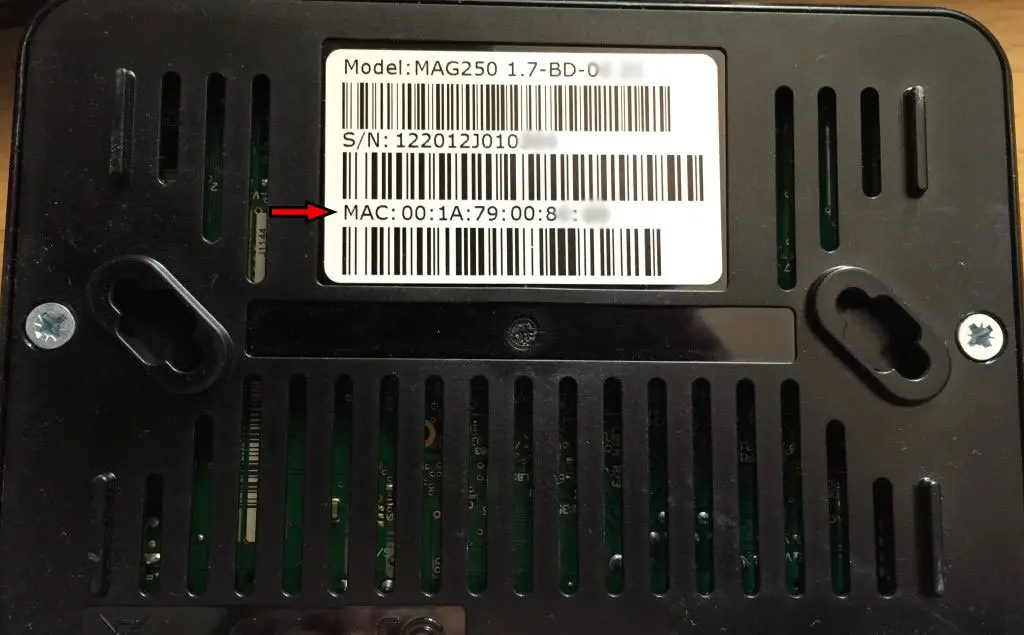
Turn the box over and look for the MAC line on the label. On genuine classic MAG models it usually begins 00:1A:79.
Copy all six pairs exactly, colons included, and send them to us on WhatsApp. Wait for us to confirm the device is registered before you go any further — the portal cannot authenticate until we have bound your MAC to your account.
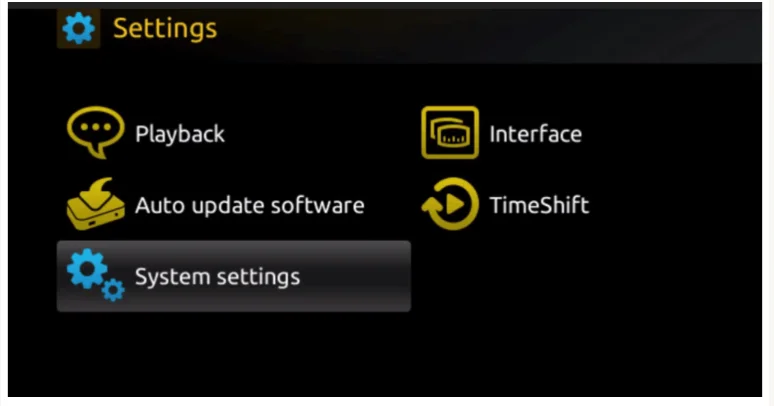
Switch the box on and wait for its built-in portal screen to appear. Open Settings, then System settings.
On most MAG remotes the SETUP, SET or gear button takes you straight there.
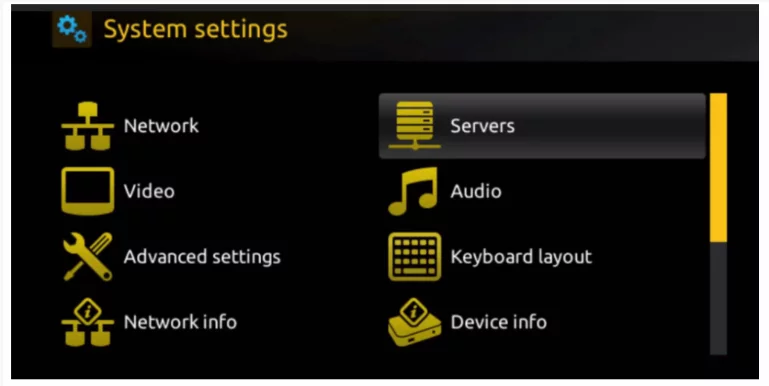
Inside System settings, highlight Servers and press OK.
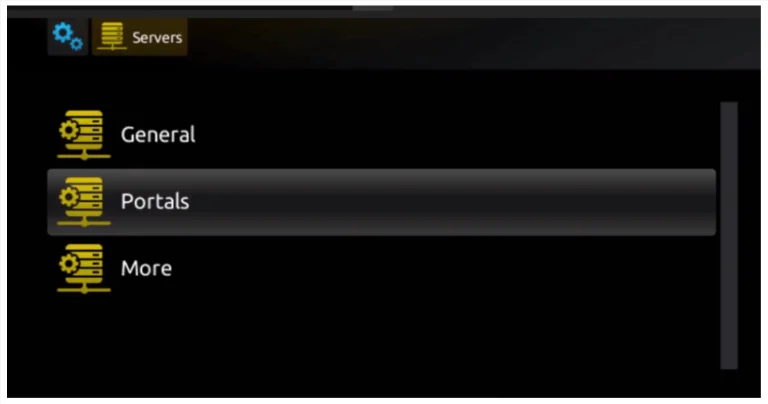
Select Portals. You will see Portal 1 name, Portal 1 URL and a second set of Portal 2 fields.
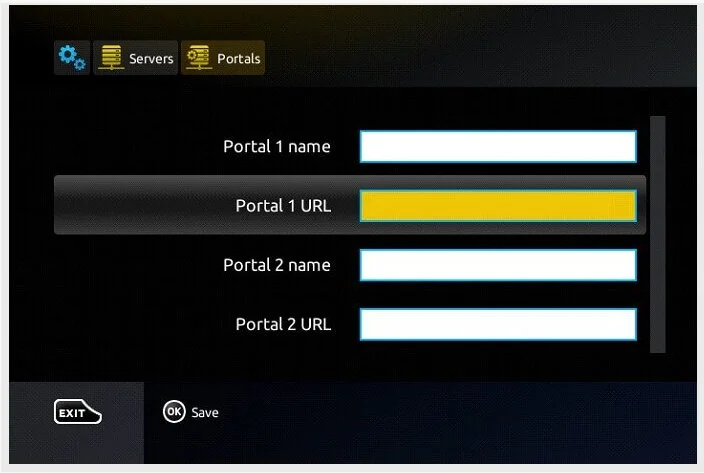
Portal 1 name: type EyePTV. Portal 1 URL: enter the portal address we sent you on WhatsApp.
Leave Portal 2 empty unless we gave you a backup portal as well.
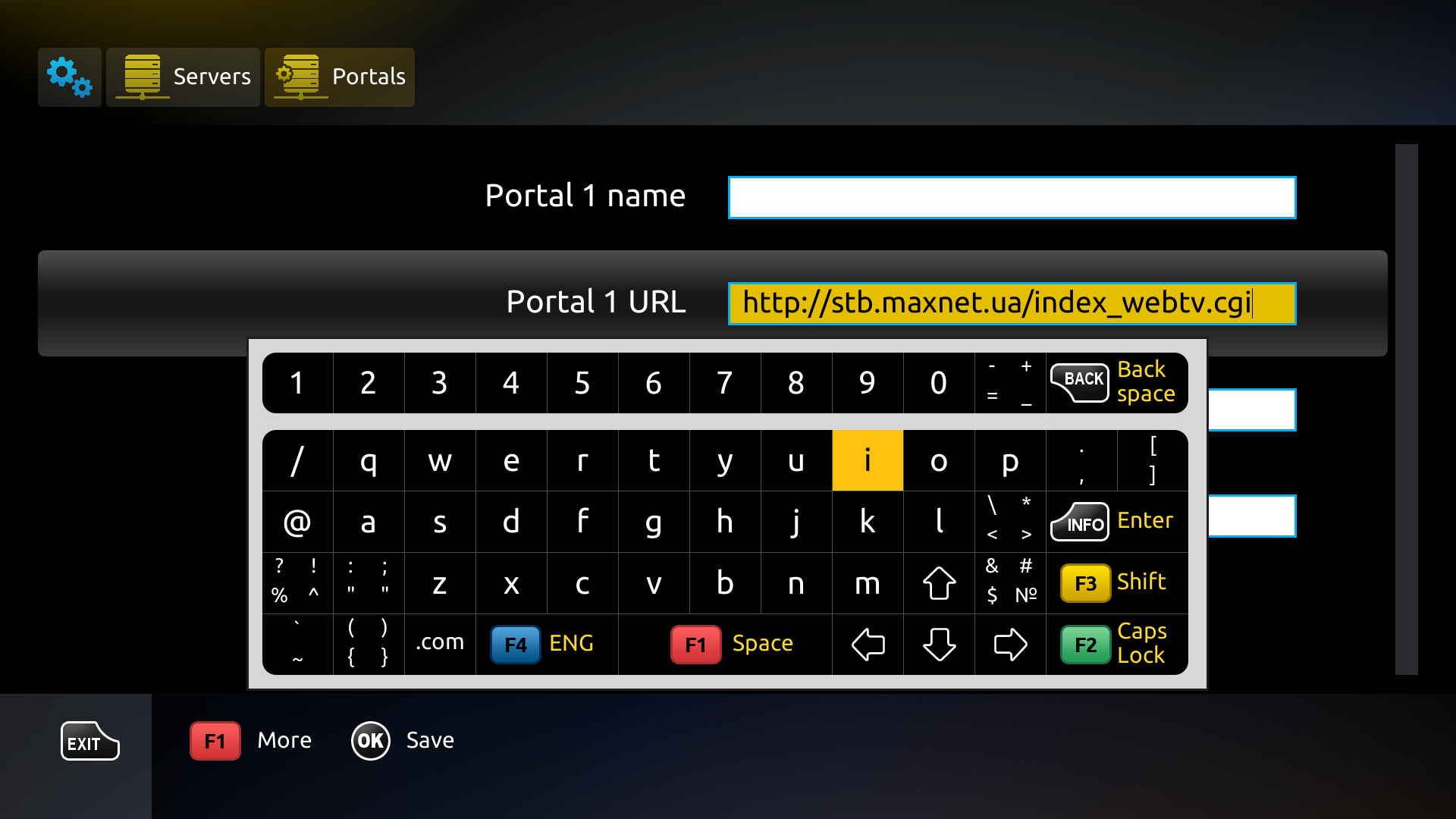
Select the Portal URL field and use the on-screen keyboard — the keyboard button on the remote opens it if it doesn't appear. When the address is in, press OK or Save.

Go back to System settings and choose Restart portal or Reboot portal. If your firmware has neither, just power-cycle the box.
Give it a minute — the first load is slower while the portal and guide data come down. Once the portal URL and your registered MAC match, EyePTV loads on its own and you can browse Live TV, Movies, Series and the guide with the MAG remote.
MAG boxes fail in a small number of predictable ways. These cover nearly all of them.
Two causes, and they look identical. Either the portal URL has a typo, or your MAC isn't registered on our side yet. Read the URL back to yourself character by character, then message us to confirm the MAC went through.
Some boxes ship with operator-customised firmware that hides or locks the portal fields. Infomir documents this as intended behaviour. Don't factory-reset the box — message us or your supplier first.
Newer firmware has a Compatible model setting under System settings → Servers → Portals. Try the newest supported model first (MAG420), then older modes like MAG322 or MAG254 if the portal needs one.
The new box has a different MAC, so your service won't follow it automatically. Send us both the old and new MAC and we'll move the registration across before you enter the portal.
Check the box's date, time and NTP settings under the Servers menu. MAG boxes get their clock from the network, and a wrong clock shifts the whole guide.
Only if we've given you a backup portal. Otherwise leave Portal 2 empty — a stray address in there can send the box to the wrong portal on boot.
Send us a photo of your TV screen on WhatsApp, along with your MAG model and MAC address.
Get help on WhatsAppThe screenshots on this page come from public pages showing real MAG interfaces; each credits its source underneath. None are AI-generated. MAG menus differ between models and firmware versions, and operator-customised firmware can hide the portal fields entirely. Checked August 2026.